
How do you share a quiz on WhatsApp?
Open your quiz in Quizzory and tap share to copy the link. Paste it into your WhatsApp group or chat, wait a second for the preview card to load, then send. Students tap the link, the quiz opens in their phone browser, and they attempt it with no app and no login. The same one link works for the whole group, you only need to send it once.
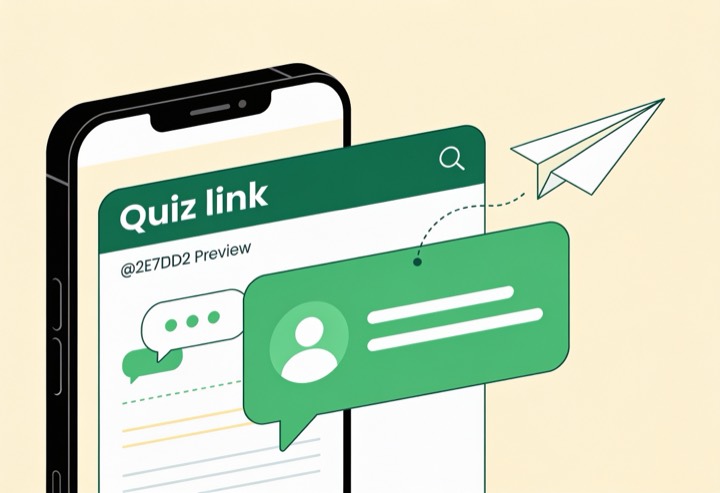
Share a quiz on WhatsApp in a few steps
Plain steps that use only what Quizzory actually does.
- 1
Create your quiz
Sign in with your free SurveyHeart account (needed to create) and make a new quiz in Quizzory. Add MCQ, short answer or long answer questions, tick the correct option on each MCQ, and set the marks. This part is for you only, the sharing comes next.
- 2
Set a timer if you want
Turn on a timer so the quiz auto-submits when time runs out. This keeps the whole WhatsApp group on the same clock. Skip it if you want an open attempt.
- 3
Copy the quiz link
Open the finished quiz and tap the share option to copy its link. You can also tap the WhatsApp icon if you see one, which opens WhatsApp with the link already typed. This single link is all a student needs, there is nothing to install on their side.
- 4
Paste it in the WhatsApp group
Open your class or batch group, long press the message box and tap Paste. Wait a second for the small preview card with the quiz title to load, that is your sign the link is live. Type one line above it, like Start now, 20 minutes, then send. One link covers the whole group.
- 5
Students attempt on their phone
Each student taps the link and the quiz opens straight in their phone browser. No app download and no sign-up just to attempt. They answer and submit.
- 6
Score and review the answers
MCQ and short answers are scored automatically. For long answers you award the marks yourself. Each student sees their percent score and an answer sheet after they submit.
The same test, on every student phone
A timer that submits on its own, one question at a time with clear right and wrong marks, an instant score and a rank list.
A timer that submits on its own, with one clear question at a time.
A percent ring with a correct, wrong and skipped split, the moment a student submits.
After they finish, students see the right answers, so the test doubles as revision.
Tips to make WhatsApp sharing work better
Pin a start time
Post a fixed start time so everyone attempts the timed quiz together.
Name the quiz clearly
The quiz title shows on the WhatsApp preview card, so a clear name like Class 10 Polity Test 3 helps students pick the right link in a busy group.
Match timer to question count
Give about one minute per MCQ so the auto-submit feels fair.
Share the leaderboard later
The leaderboard ranks by score then speed and updates when you refresh it, so post it after the deadline.
Send one link per quiz
Avoid confusion in a busy group by posting only the current quiz link.
Test the link yourself first
Open the link in a private chat or another phone before sending, to confirm it opens cleanly and the right quiz loads. A quick check saves a flood of confused replies.
Make a quiz and share it on WhatsApp today
Build it once, copy the link, and your whole group can attempt it on any phone.
Questions people ask
Do students need to install an app to attempt the quiz?add
No. The link opens the quiz in any phone browser. There is no app to download and no login needed just to attempt.
Can I share the same link with a whole WhatsApp group?add
Yes. One link works for everyone. Paste it once in the group and every student can tap it and attempt.
How do students get their score after the quiz?add
After they submit, each student sees a percent score and an answer sheet to review. MCQ and short answers are scored automatically.
Can I see who scored the highest?add
Yes. The leaderboard ranks students by score and then by speed. It updates when you refresh the page, so check it again after the deadline.
Will the quiz close on its own after time runs out?add
If you set a timer, the quiz auto-submits when time is up. If you do not set a timer, students can take as long as they need.